How To Embed a BitChute Video in a WordPress Post?
Published: 2026-02-06
Embedding a video from BitChute in your WordPress post is a simple process that allows you to share video content related to your post. In this guide, we’ll walk you through the steps using easy, straightforward methods to embed video into your WordPress post.
BitChute, a video-sharing platform, is similar to YouTube but doesn't have the same native embedding options in WordPress. Don't worry—embedding a BitChute video is a very easy process. Let's go over the steps!
Steps to embed a BitChute Video in a WordPress Post
Step 1: Getting Embed Code
- Go to the BitChute video you want to embed. (For example, I have used this video, https://www.bitchute.com/video/Yk73jJnxdhom )

- Click on the Share Button.
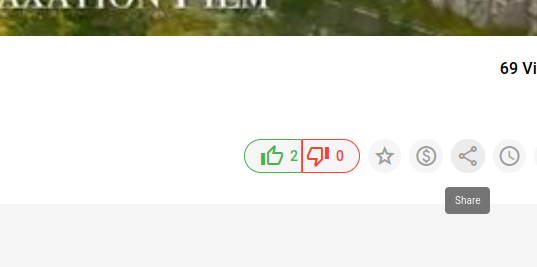
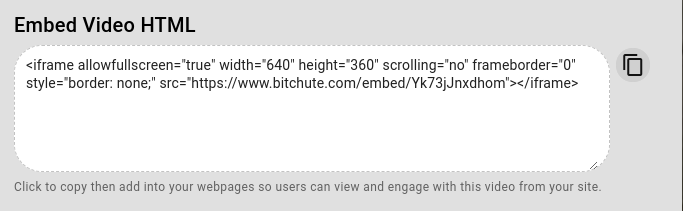
- Copy the code that appears (it will be in HTML format, starting with <iframe>,showed in image).
<iframe allowfullscreen="true" width="640" height="360" scrolling="no" frameborder="0" style="border: none;" src="https://www.bitchute.com/embed/Yk73jJnxdhom"></iframe>
Step 2: Edit Your WordPress Post or Page:
- Go to your WordPress dashboard.
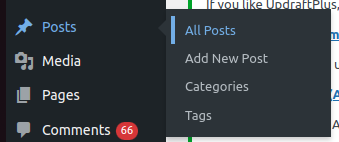
- Then, go to Posts > All Posts.
- Open the post or page where you want to embed the video or create a new post/page.
Step 3: Paste the Embed Code into the Post or Page and Update or Publish
- If you're using the Block Editor (Gutenberg):
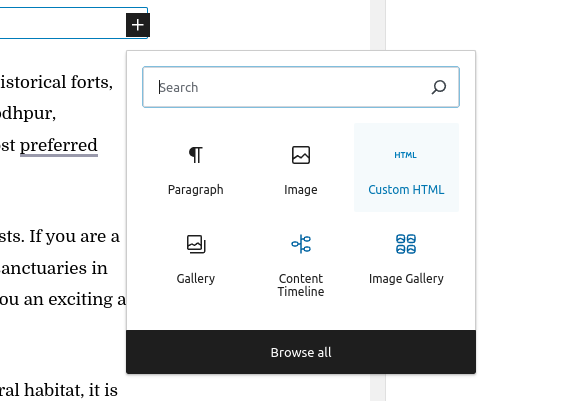
- Add a "Custom HTML" block in the content.
- Paste the BitChute embed code into this block.
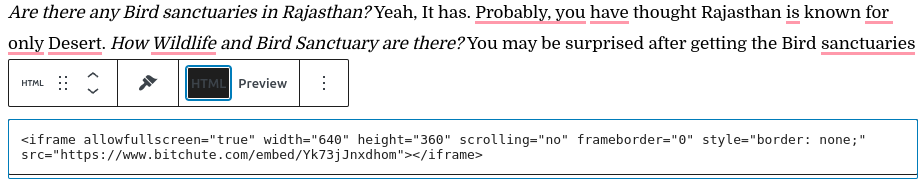
- Finally, Publish or Update the post or page.
- Here is the output of blog post after embedding BitChute video into your post.

Wordpress
Web Technologies